

Volunteer with a Group
Attending projects with friends, children, coworkers, or other civic groups is possible. Sign up together by using our team functionality.
If a volunteer opportunity indicates adultsmust be present, youth and adults must register using the team functionality.
You can create a volunteer team with all the people you want to volunteer together. First, be sure you have your own account.
-
Register for a volunteer account with the site or login
-
Find a volunteer opportunity
-
Choose Sign Up/Express Interest as a Team at the bottom
-
Create your team or choose an existing team
-
Choose which members you're bringing to the opportunity
Need more help? Click each section to see more help.
Team captains can sign up different members of their team for different projects, but remember--captains are responsible for attending the project AND ensuring members attend. Please ensure the person on your team is able to attend before you sign up and hold a slot for them (making it unavailable for others).
If you are registering a team, that means you will be attending too! Otherwise, members will never have any information about the project or ways for us to communicate with them. If you will not attend, then another volunteer with a confirmed account should be captain of your team and register those people.
Please note: simply creating a team doesn't mean you've registered them for any projects . You will need to go the page of the actual project you wish to register members for and follow Step 4 below.
Creating a Team
Step 1: Register for an account with the site or Login
To sign up for any projects on our site, you must first create an account. Click Register to create an account or Login at the top right of the page if you already have an account.
Step 2: Create a team
Visit the My Account , then My Teams section, and click Create a New Team and follow the steps below.
.png)
Each person must have either:
1) a unique email address (2 people on team can't share the same email) OR
2) a phone number (phone number does NOT need to be unique)
3) age must be included if the team member is a minor (we'd strongly suggest you put it in for all people
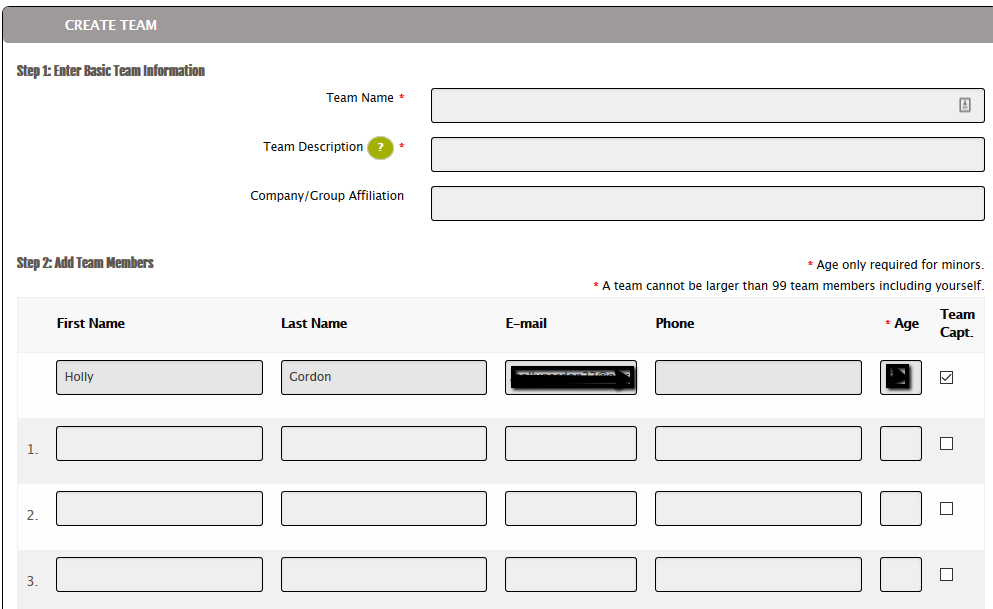
It's best to include an email address for all team members, so that they can verify their team membership, and formalize their own individual account within our system so that they can receive confirmation emails, reminders from the system, and have their hours tallied.
But, many team members never confirm their accounts, which is fine, so the team captain is always responsible for getting the project information to them.
Please note that if you are adding children to your team that are under the age of 13 you cannot include an email for them and must use a parent/guardian's phone number for their contact information. Under the Children's Online Privacy Protection Act we are unable to create unique accounts with email addresses for children under the age of 13.
Captains should always register themselves for any projects they register team members for.
Step 3: Find Volunteer Opportunities
Once you find an opportunity that has the appropriate number of spaces and age requirements available for your team, you can sign up some or all members of your team.
Step 4: Express Interest/Sign Up As a Team
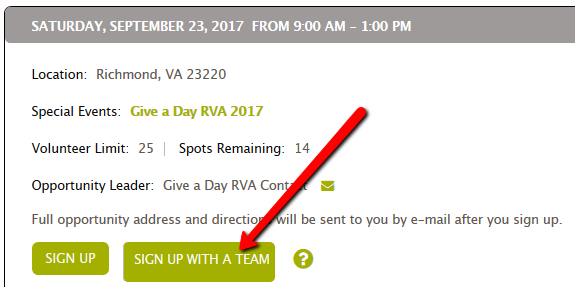
At the bottom of the Opportunity screen, click this to indicate you will be signing up as a member of a particular team (and not just as an individual).
Step 5. Select which members will attend the project
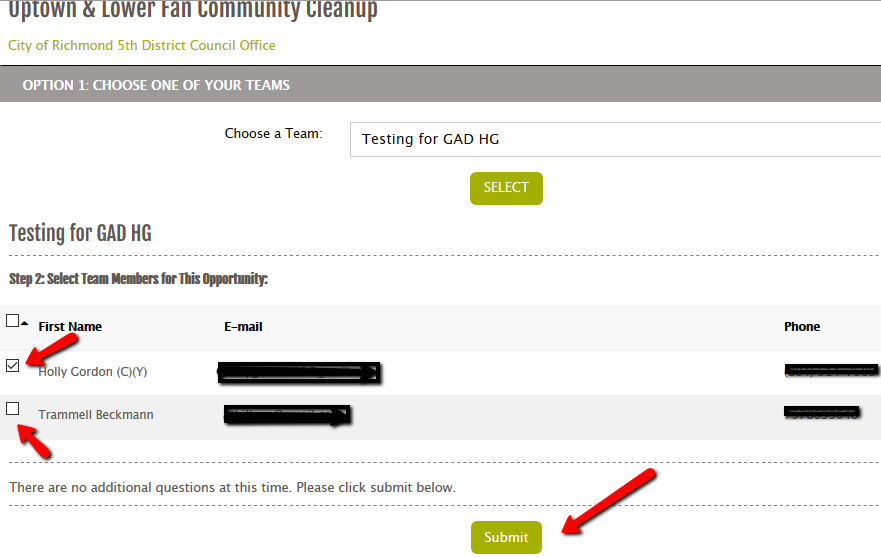
Every person who plans to attend the project, including YOUTH, must be signed up for the project.
Managing Teams
Q: How do I see or change which members are participating in a volunteer opportunity I’ve already signed folks up for? What if I want to register more people?
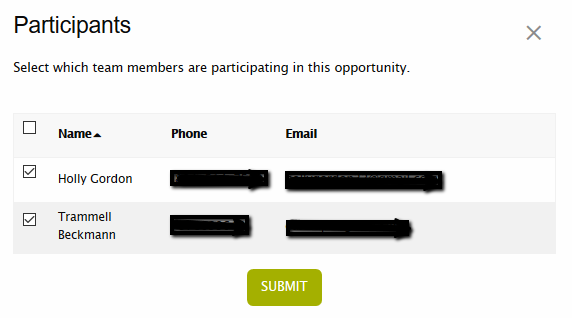
Find the opportunity in your My Account under Upcoming Opportunities. Click on Participants.
.png)
Boxes will already be checked next to those who have already been registered (including yourself). Select or unselect the team members you do and do not want attending and click Submit.
Q: How do I edit who is ON my team?
Go to My Account and then My Teams. Click the + sign next to the teamyou wish to modify. Then click the Manage Team buttonto show who's there.You can add or remove members , make another person captain, or email your team.
.JPG)
.png)
.png)
Note: You cannot edit personal information about the individual team members such as phone or email--only they can do that since you've created accounts for them in our system. Or contact us and we'll update it for you.
Need us to answer a question that is not included on this page? Please e-mail us or call us at 804-409-5636.